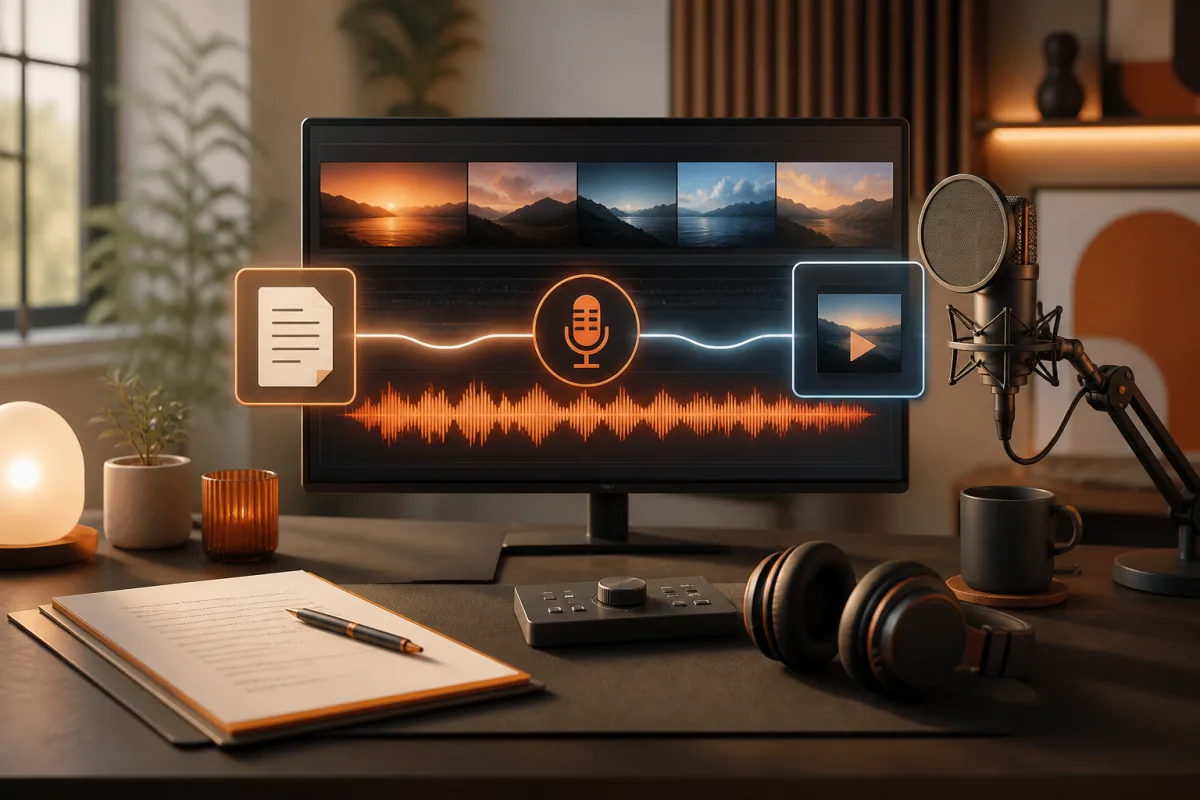
How to Create an AI Voiceover for YouTube Videos Step by Step
Want to publish YouTube videos without recording your own voice? AI voiceover tools make it possible to turn a written script into natural-sounding narration. Learn how to prepare your script, choose an AI voice, generate audio with ElevenLabs, and add the result to your video.
Create Your AI VoiceoverVoiceovers are an important part of many successful YouTube channels. They explain what viewers are seeing, introduce ideas, tell stories, and help videos feel more professional. However, recording narration can take time, especially if you do not have a microphone, a quiet recording space, or experience speaking in front of a camera.
That is where an AI voice generator can help. Instead of recording every sentence yourself, you can write a script, select a suitable synthetic voice, and generate an audio file ready to use in your video editor.
In this tutorial, we will walk through the complete process using ElevenLabs as an example. The same general workflow applies to other text-to-speech platforms.
What Do You Need to Create an AI Voiceover?
You do not need a professional recording studio or expensive equipment. A basic setup is enough to get started.
- A YouTube video idea: Decide what your video will explain, demonstrate, or entertain viewers with.
- A written script: Prepare the words you want the AI narrator to speak.
- An AI voice generator: Use a text-to-speech platform such as ElevenLabs.
- A video editor: Use software such as CapCut, DaVinci Resolve, Adobe Premiere Pro, or another editor that supports audio tracks.
- Background music and visuals: Optional elements that can make your finished video more engaging.
Step 1: Write a Script for Your YouTube Video
The first step is preparing the text that your AI voiceover will read. A good script is more important than many beginners realize. Even an excellent AI voice can sound unnatural if the writing is confusing, repetitive, or filled with sentences that are too long.
Write as if you were speaking directly to a viewer. Use simple language, short paragraphs, and clear transitions between topics. Avoid making the narration sound like a formal essay.
A simple YouTube script structure
- Hook: Start with an interesting question, surprising fact, or promise of useful information.
- Introduction: Explain what the video is about and why viewers should keep watching.
- Main content: Present the information in logical sections.
- Conclusion: Summarize the most important points.
- Call to action: Invite viewers to subscribe, comment, or watch another video.
For example, if you are creating a video about the best productivity apps, your opening could be:
Read your script aloud before generating the audio. If a sentence is difficult to say naturally, rewrite it. Add commas and full stops where a narrator should pause.
Step 2: Open ElevenLabs and Choose Text to Speech
Once your script is ready, open ElevenLabs and create an account or sign in. Navigate to the Text to Speech feature in the platform.
ElevenLabs converts written text into spoken audio and offers different voices, languages, and generation settings. You can experiment with available voices before deciding which one fits your channel.
For a first project, you can use a pre-made voice from the voice library. You do not need to clone your own voice or train a custom model.
Step 3: Select the Right AI Voice
Choosing the right voice is one of the most important decisions in the process. Your narrator should match the topic, audience, and personality of your YouTube channel.
| YouTube Channel Type | Recommended Voice Style |
|---|---|
| Technology and tutorials | Clear, confident, conversational |
| Documentaries | Deep, expressive, storytelling |
| Finance and business | Professional, calm, authoritative |
| Travel and lifestyle | Friendly, energetic, natural |
| Education | Articulate, patient, easy to understand |
| Entertainment | Expressive, dynamic, engaging |
Listen to several voice samples before making your choice. Pay attention to pronunciation, pacing, accent, and how the voice handles longer sentences.
It is also a good idea to use the same narrator throughout a video series. A consistent voice can help viewers recognize your content and create a more coherent channel identity.
Step 4: Paste Your Script and Adjust the Settings
Copy your script and paste it into the text input area. Select your preferred voice and review the available generation settings.
Depending on the model and interface, you may be able to adjust characteristics such as stability and similarity. These controls influence how consistently the voice follows its established sound. The exact settings available can vary between models.
Tips for better AI narration
- Use punctuation to create natural pauses.
- Break long paragraphs into smaller sections.
- Write numbers in a way that makes pronunciation clear.
- Spell out abbreviations when the AI mispronounces them.
- Test difficult names, technical terms, and foreign words before generating the entire script.
- Use a consistent tone throughout the video.
Some ElevenLabs models also support audio tags that can guide delivery, such as emotional expressions or whispered speech. Test these features with a short sample first, since results depend on the selected model and context.
Step 5: Generate and Review the AI Voiceover
When your voice and text are ready, click the Generate button. The platform will process your script and produce an audio recording.
Do not immediately add the first result to your YouTube video. Listen to the complete narration and check for errors.
- Does the narrator pronounce every word correctly?
- Are there awkward pauses or unnatural sentence endings?
- Does the voice sound consistent from beginning to end?
- Are important words emphasized appropriately?
- Is the narration easy to understand at normal playback volume?
If something sounds wrong, edit the text or settings and generate that section again. For longer projects, creating audio in smaller sections can make revisions easier and help you manage the narration.
Step 6: Download Your Audio File
Once you are satisfied with the narration, download the generated audio in a format supported by your video editor. MP3 is convenient for most standard editing workflows, while some plans and interfaces offer additional formats such as WAV or other higher-quality options.
Give your files descriptive names so you can find them easily. For example:
youtube-intro.mp3youtube-section-01.mp3youtube-conclusion.mp3
Keeping the introduction, main sections, and conclusion separate can be useful if you need to replace only one part of the narration later.
Step 7: Add the AI Voiceover to Your YouTube Video
Now it is time to combine your generated narration with your video footage. Open your preferred video editor and import both the video clips and the AI audio files.
The basic process is similar in most editing applications:
Import your files
Add your video clips, images, music, and generated narration to the editing project.
Place the narration
Drag the voiceover onto the audio timeline and align it with the corresponding scenes.
Synchronize visuals
Adjust video cuts, screen recordings, and images to match what the narrator is explaining.
Balance the sound
Lower background music so the voice remains clear and easy to understand.
Remember that narration should be the main audio element in most educational and explanatory videos. Background music should support the message rather than compete with it.
Step 8: Add Captions, Music, and Final Effects
After synchronizing the voiceover, improve the viewing experience with captions, transitions, and suitable background music.
Captions are especially useful for viewers watching without sound or those who prefer reading along. Review automatically generated subtitles carefully because technical terms, names, and numbers may be transcribed incorrectly.
Choose music that matches the mood of your video and make sure you have the necessary rights to use it. Do not assume that a track is free to use simply because it is available online.
Before exporting, watch the complete video from beginning to end. Check that the narration is synchronized, the music is not too loud, and no sections contain unwanted silence or abrupt cuts.
Step 9: Export and Upload Your Video to YouTube
When the editing is complete, export your video using settings suitable for your footage and publishing goals. A common starting point for standard YouTube videos is MP4 with H.264 video encoding and AAC audio.
Review the exported file before uploading it. Then open YouTube Studio, upload your video, and complete the publishing details:
- Write a descriptive, keyword-focused title.
- Create a useful video description.
- Add relevant chapters when appropriate.
- Upload an attractive thumbnail.
- Choose the appropriate audience settings.
- Check captions and accessibility options.
AI narration does not replace the need for original, useful content. Your video should provide genuine value through its script, research, visuals, commentary, or presentation.
Best Practices for Making AI Voiceovers Sound More Human
One common mistake is assuming that a natural-sounding AI voice will automatically produce a professional video. The final result depends on how well the narration is written, generated, edited, and combined with the visuals.
1. Write for the ear, not just the page
Use conversational language. A sentence that looks good in a blog post may sound awkward when spoken aloud. Read your script out loud and simplify anything that feels unnatural.
2. Avoid overly long narration sections
Break your content into logical segments. This makes it easier to correct pronunciation problems and adjust timing without regenerating the entire project.
3. Match the voice to your audience
A documentary narrator may not be suitable for a fast-paced gaming channel. Consider the personality and expectations of your viewers when selecting a voice.
4. Use visuals to support the narration
Do not leave the same image on screen for an entire explanation. Use relevant footage, graphics, demonstrations, and screen recordings to reinforce what the narrator is saying.
5. Keep your channel consistent
Using a consistent narrator, audio level, editing style, and pacing can help create a recognizable viewing experience across multiple uploads.
How Much Does It Cost to Create AI Voiceovers?
The cost depends on the platform, the amount of narration you generate, the features you need, and whether you plan to monetize your videos.
ElevenLabs offers a free tier for trying its tools, as well as paid subscriptions with additional credits and features. Its pricing page currently lists a Starter subscription at $6 per month after a promotional first month and a Creator subscription at $22 per month after its introductory offer. Prices and promotions can change, so check the official page before subscribing.
One important consideration is commercial usage. According to ElevenLabs’ published plan information, its free plan does not include a commercial license, while paid plans include commercial usage rights subject to the applicable terms and ownership of the input material.
If you intend to publish sponsored videos, advertisements, or monetized content, review the current licensing conditions before using generated audio commercially.
Why Use ElevenLabs for YouTube Voiceovers?
ElevenLabs is worth considering if you want to produce narration without recording every video yourself. Its text-to-speech tools offer a selection of voices, multilingual capabilities, and controls for generating speech with different delivery styles.
- Multiple voice options: Choose from different voices and styles for different types of videos.
- Multilingual narration: Generate speech in supported languages, including English and Spanish.
- Voice customization: Explore available settings to adjust the output.
- Voice cloning: Eligible plans and features allow users to create a version of their own voice.
- Flexible workflow: Generate narration and import the resulting audio into your preferred video editor.
It is not a complete replacement for video editing or content production software. Instead, it handles the narration stage, which can save time for creators who publish frequently.
Try ElevenLabs for AI Voiceovers
Common Mistakes to Avoid
- Using a script without proofreading: Incorrect punctuation and awkward wording can affect the narration.
- Choosing a voice without testing it: Always listen to a sample before generating a long recording.
- Ignoring pronunciation: Review names, brands, locations, and technical vocabulary.
- Making background music too loud: Viewers should never struggle to hear the narrator.
- Using unlicensed music or visuals: Make sure every asset is cleared for your intended use.
- Publishing repetitive, low-value videos: AI narration is a production tool, not a substitute for original ideas and useful information.
- Cloning voices without permission: Only clone voices when you have the necessary rights and consent.
AI Voiceover YouTube Workflow Checklist
Use this checklist before publishing your next video:
- Choose a topic and define the target audience.
- Write and proofread the narration script.
- Select an AI voice that fits the channel.
- Generate a short sample and check pronunciation.
- Create and download the complete voiceover.
- Import the audio into your video editor.
- Synchronize narration with footage and graphics.
- Add captions and properly licensed background music.
- Review the complete video and export it.
- Check commercial rights and YouTube publishing requirements.
Frequently Asked Questions
Yes. Text-to-speech tools can turn your written script into narration using synthetic voices. You can select a suitable voice and add the generated audio to your video editor without recording yourself.
The best option depends on your budget, language, preferred voice style, and licensing needs. ElevenLabs is one platform worth testing because it offers text-to-speech generation, a voice library, and voice customization features.
AI-generated narration can be part of monetized content, but you must have the necessary commercial rights and comply with YouTube’s monetization policies. A synthetic voice alone does not guarantee eligibility. Originality, viewer value, and compliance with platform rules remain important.
No. If you use a ready-made synthetic voice, you only need a written script and an AI voice generator. A microphone is necessary only if you want to record your own narration or create a voice clone using your recordings.
Yes. ElevenLabs supports Spanish text-to-speech generation. For the most natural result, choose a voice and accent that match your intended audience, such as viewers in Latin America or Spain.
ElevenLabs offers a free plan with limited monthly credits. However, the free plan does not include a commercial license according to its published terms. Check the current pricing and licensing information if you plan to monetize your videos.
You can use synthetic voices and, where permitted, create voice clones. However, you should only clone or imitate an identifiable person’s voice when you have the required authorization and comply with the platform’s rules.
Final Thoughts
Creating an AI voiceover for YouTube videos is a straightforward way to simplify narration and build a more efficient content production workflow. With a well-written script, a suitable AI voice, and a little editing, you can produce narration without needing to record every video yourself.
The key is to treat AI voice generation as one part of the creative process. Review the audio, synchronize it with relevant visuals, use properly licensed assets, and focus on giving viewers something useful or entertaining.
If you want to experiment with natural-sounding AI narration, explore ElevenLabs here and create your first YouTube voiceover.
Disclosure: This article contains an affiliate link. If you sign up through it, the publisher may earn a commission at no additional cost to you.